Profile
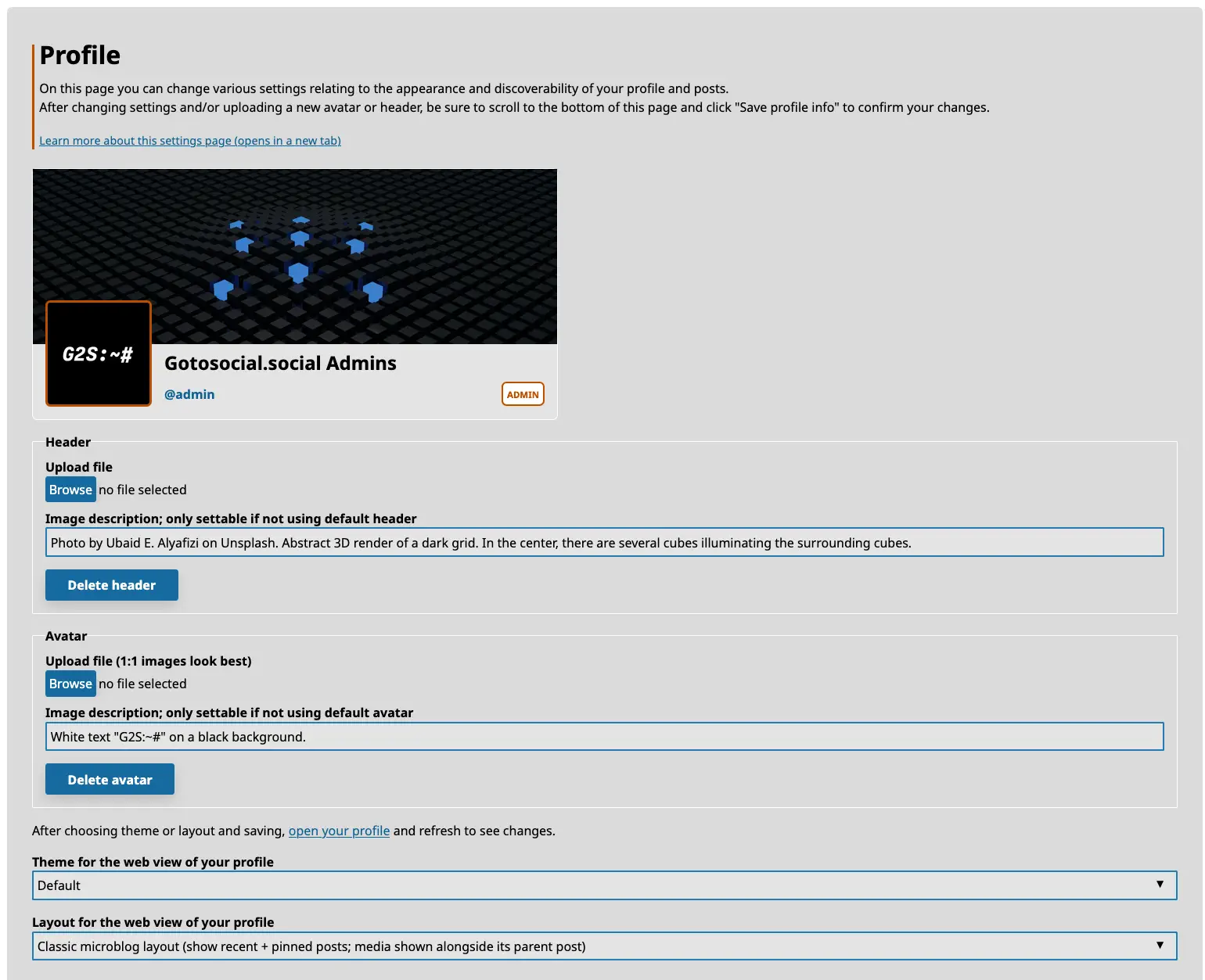
In the profile section you can change your display name, avatar and header images. You can also choose to enable manually approving follow requests, and opt-in to providing a public RSS feed of your posts.
Set Avatar / Header
To set an avatar or header image, click on the Browse button in the appropriate section, and use the file browser to select an image.
Currently, supported image formats are gif, png, webp, and jpeg/jpg.
A preview of the image as it will appear on your profile will be shown. If you're happy with your choices, click on the Save profile info button at the bottom of the page.
If you navigate to your profile and refresh the page, your new avatar / header will be shown. It might take a bit longer for the update to federate out to remote instances.
Select Theme
GoToSocial provides themes for you to choose from for the web view of your profile, to change your profile's appearance and vibe.
To choose a theme, just select it from the profile settings page, and click/tap "Save profile info" at the bottom of the page. When you look at your profile in the web view (you may need to refresh the page), you'll see the new theme applied, and so will anyone else visiting your profile.
Select Layout
GoToSocial lets you choose from two different layouts for the web view of your profile.
The setting does not affect how the API behaves or how client applications look or work, it's purely a cosmetic change for the web view.
In both cases, only top-level posts (or media from top-level posts) is shown, not replies or boosts, and the Visibility Level of Posts to Show on Your Profile setting is respected.
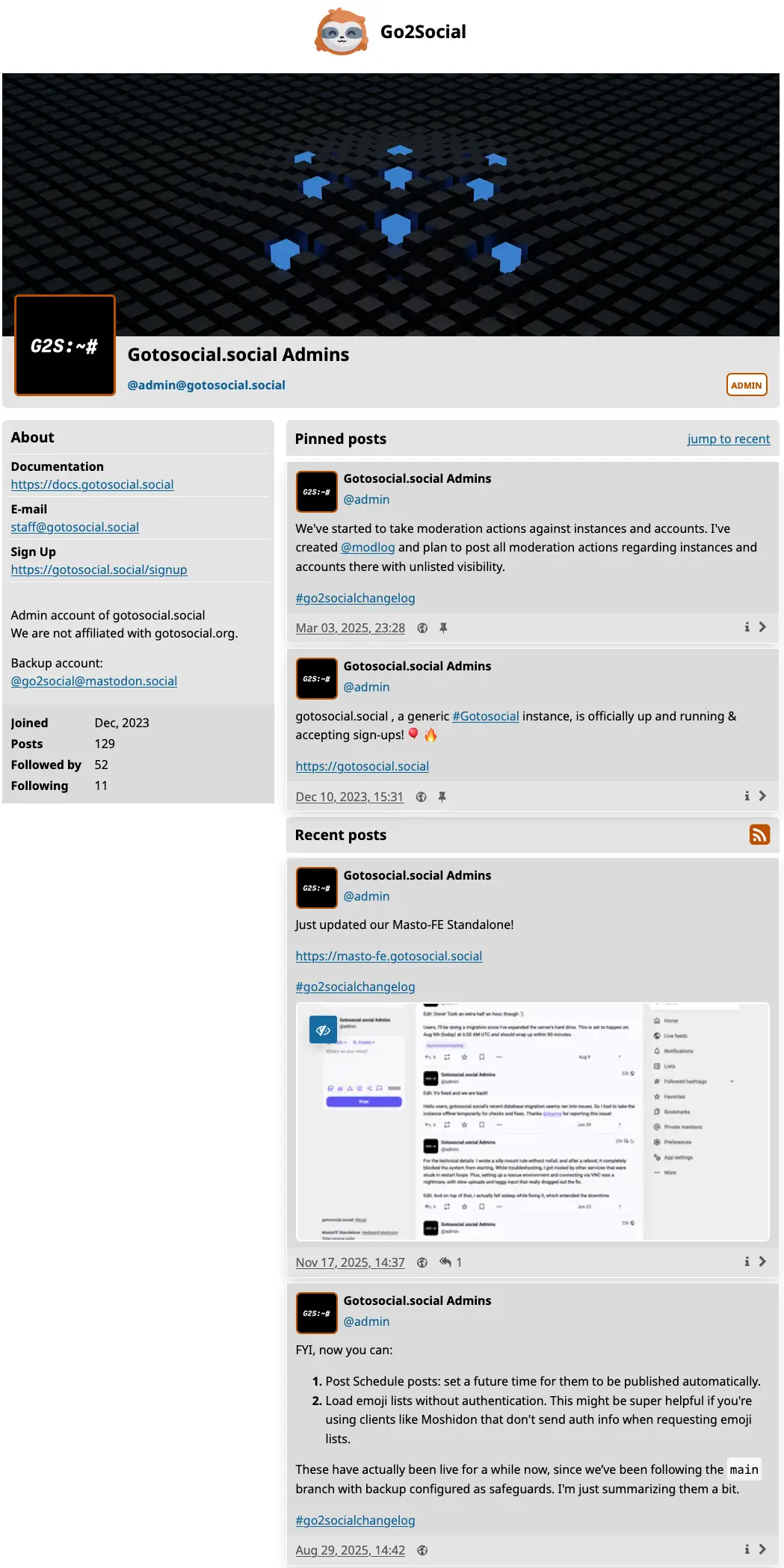
Microblog
The GtS classic microblog layout. Your profile is split into two columns with your bio and recent/pinned posts.
This is a good choice if you primarily post text, or a mixture of text and media.
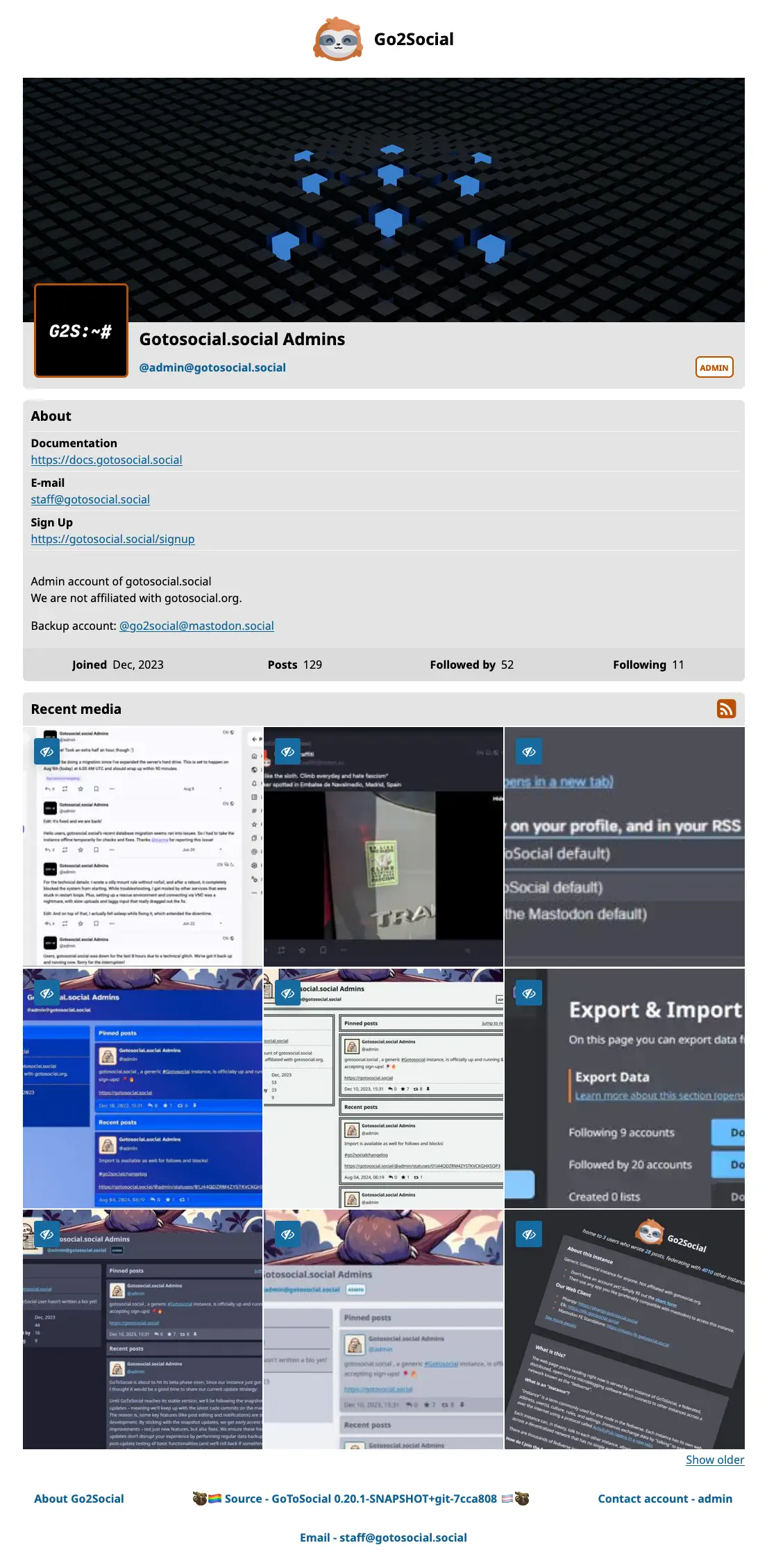
Gallery
'Gram-style layout. Posts are not shown directly on your profile. Instead, your recent/pinned media is shown in a gallery grid view. Posts (with their replies) can still be accessed via link.
This is a good choice if you primarily post media.
Basic Information
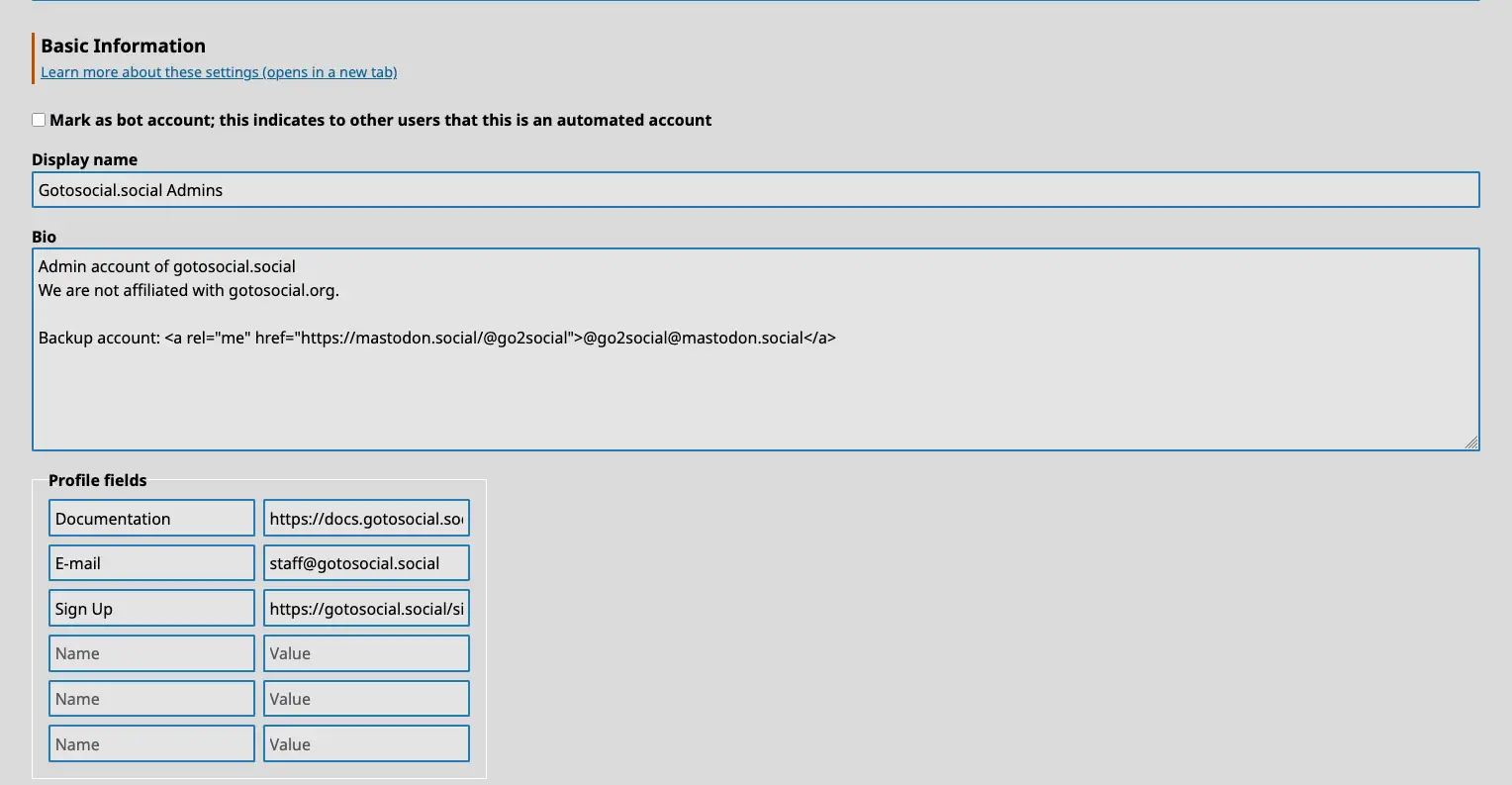
Display Name
Your display name is a short handle shown alongside your username on your profile.
While your username cannot be changed once it's created, your display name can.
Your display name can also contain spaces, capital letters, emojis, and so on.
It's a great place to put a nickname or full name. For example, if your username is @miranda, your display name could be something like Miranda Priestly.
Bio
Your bio is a longer text that introduces your account and your self. Your bio is a good place to:
- Give an indication of the sort of things you post about.
- Mention your approximate age / location.
- Link to any of your other accounts or profiles elsewhere.
- Describe your boundaries and preferences when it comes to other people interacting with you.
- Link hashtags that you often use when you post.
The bio accepts either plain or markdown formatting. This is set by the default post format setting described in Post Settings.
Profile Fields
Profile fields are a series of name/value pairs that will appear on your profile, and be federated to remote instances.
This is a perfect place to put things like:
- Links to your website(s)
- Links to crowdfunding / donation pages
- Your age
- Pronouns
Some examples:
- Alias : handler walter
- My Website : https://example.org
- Age : 99
- Pronouns : she/her
- My other account : @someone@somewhere.com
ListenBrainz integration
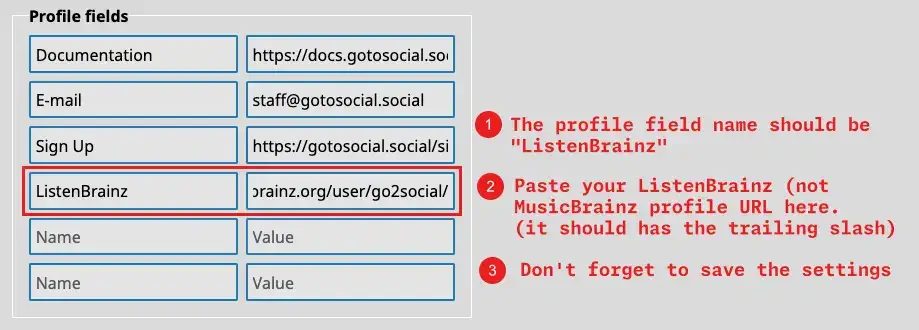
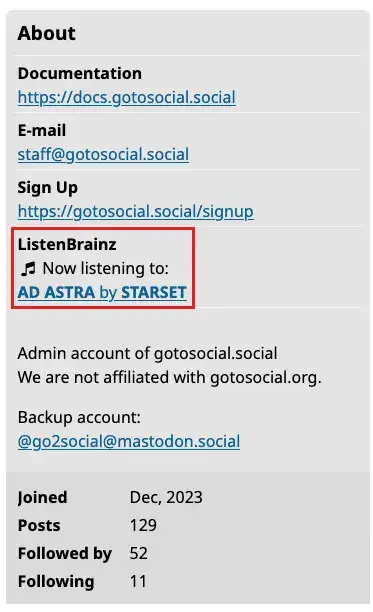
If you set the key of one of your profile fields to "ListenBrainz" and the value to the URL of your ListenBrainz profile (something like https://listenbrainz.org/user/your_listenbrainz_username/ -- the slash at the end is important!), then the field will be replaced on the web frontend with whatever you're currently listening to!
This only applies to the web view of your GoToSocial profile, for visitors with Javascript enabled; the "currently listening" value doesn't federate to other servers, only your ListenBrainz URL.
How to set it:
How it looks on the web when you're listening to something:
Visibility and Privacy
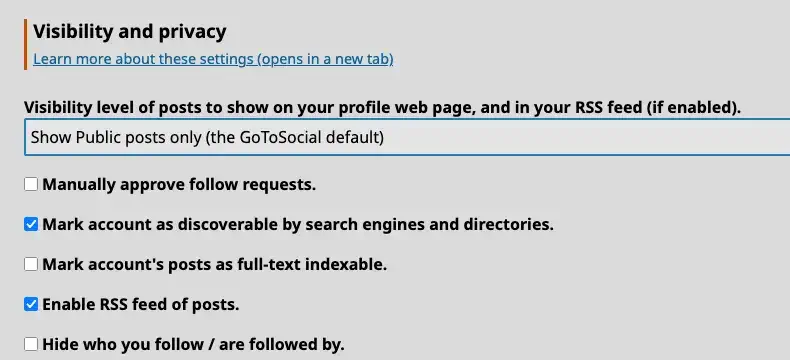
Visibility Level of Posts to Show on Your Profile
Using this dropdown, you can choose what visibility level(s) of posts should be shown on the public web views of your profile and posts, and in your RSS feed (if enabled).
By default, GoToSocial shows only Public visibility posts on its web views, not Unlisted. You can adjust this setting to also show Unlisted visibility posts, which is similar to the default for other ActivityPub softwares like Mastodon etc.
You can also choose to show no posts at all on the web view of your profile. This allows you to post without having to worry about scrapers, rubberneckers, and other nosy parkers being able to easily look through your posts by opening your profile in a browser.
Please bear in mind that this setting only applies to the logged-out (unauthenticated) web view of your profile and threads that people visit in their web browser, and RSS feed (if enabled). It does not change the visibility of your posts over the ActivityPub protocol. So even if you choose to show no posts to logged-out visitors to your web profile, folks on instances you federate with will be able to see your posts via ActivityPub if they follow you, have your posts boosted onto their timeline by other people, use a link to search a post of yours, etc.
Furthermore, while GoToSocial does transmit a flag to other instances indicating your preference of what post visibility level to show to logged-out visitors, not all servers will respect this flag; indeed, many servers allow logged-out visitors to look up remote profiles, which can expose your public and unlisted posts. If you require stricter control over who sees your posts, consider posting things at the followers-only visibility level, which almost all server softwares respect and properly gate behind authorization.
WARNING
Be aware that changes to this setting also apply retroactively.
That is, if you previously made a post on Unlisted visibility, while set to show only Public posts on your profile, and you change this setting to show Public and Unlisted, then the Unlisted post you previously made will be visible on your profile alongside your Public posts.
Likewise, if you change this setting to show no posts, then all your posts will be hidden from your profile, regardless of when you created them, and what this option was set to at the time. This will apply until you change this setting again.
TIP
Alongside blocking, this is a good "emergency" setting to use if you're facing harassment from people trawling through your public posts. It won't hide your posts from people who can see them in their clients, via ActivityPub, but it will at least prevent them from being able to click through your posts in their browser with no authentication, and easily share them with others with a URL.
Manually Approve Follow Requests (aka Lock Your Account)
This checkbox allows you to decide whether or not you want to manually review follow requests to your account.
When this is not checked, new follow requests are approved automatically without your intervention. This is useful for more public-facing accounts or cases where you don't really post anything sensitive or private.
When it is checked, you must manually approve new follow requests, and you can deny follow requests from accounts you don't want to follow you. This is useful for private accounts where you post personal things to followers only.
This option is often referred to on the fediverse as "locking" your account.
After ticking or unticking the checkbox, be sure to click on the Save profile info button at the bottom to save your new settings.
Mark Account as Discoverable by Search Engines and Directories
This setting updates the 'discoverable' setting on your account.
Checking the discoverable box for your account does the following:
- Indicate to remote instances that your account may be included in public directories and indexes.
- If 'indexable' is also checked, update robots meta tags for your account, allowing your profile and posts to be indexed by web search engines and appear in web search engine results.
Turning on the discoverable setting may take a week or more to propagate; your account will not immediately appear in search results.
INFO
The discoverable setting is about discoverability of your account, not searchability of your posts. The indexable setting controls the rest.
Mark Account's Posts as Full-Text Indexable
This setting updates the 'indexable' setting on your account.
Checking the indexable box for your account does the following:
- Indicate that your account's posts may be included in full-text search indexes. This includes but is not limited to Mastodon instances with the optional full-text search capability; other Fediverse instance types and non-instance services may also check this flag.
- If 'discoverable' is also checked, update robots meta tags for your account, allowing your profile and posts to be indexed by web search engines and appear in web search engine results.
As GoToSocial doesn't currently have general full-text search capability, the indexable setting doesn't currently affect the behavior of your own or other GoToSocial instances, but this may change in the future.
Turning on the indexable setting may take a week or more to propagate; your posts will not immediately appear in search results.
INFO
The indexable setting is specifically about searchability of your posts, but if you turn it on, you will generally also want to turn on discoverability as well.
Visibility to Web Crawlers
GoToSocial serves your profile and public posts on the same public web page. If you enable both the 'discoverable' and 'indexable' settings, robots meta tags on that page will be updated to allow well-behaved web crawlers (such as search engines) to index it.
WARNING
Robots meta tags are a convention, not a security mechanism: many web crawlers are not well-behaved and do not respect robots meta tags. Don't put anything in your profile that you don't want the entire internet to see. The same applies to public posts.
TIP
'discoverable' and 'indexable' are set to false by default for new accounts, to avoid exposing them to crawlers. Setting them to true is useful for public-facing accounts where you actually want to be crawled.
Enable RSS Feed of Public Posts
RSS feeds for users are disabled by default, but can be opted into with this checkbox. For more information see RSS.
This feed only includes posts set as 'Public' (see Privacy Settings).
WARNING
Exposing your RSS feed allows anyone to subscribe to updates on your Public posts anonymously, bypassing follows and follow requests.
Hide Who You Follow / Are Followed By
By default, GoToSocial shows your following/followers counts on your public web profile, and allows others to see who you follow and are followed by. This can be useful for account discovery purposes. However, for privacy + safety reasons you may wish to hide these counts, and to hide your following/followers lists from other accounts. You can do this by checking this box.
With the box checked, your following/followers counts will be hidden from your public web profile, and others will not be able to page through your following/followers lists.
Advanced
Custom CSS
If enabled on your instance by the instance administrator, custom CSS allows you to further customize the way your profile looks when visited through a browser.
When this setting is not enabled by the instance administrator, the text input box is read-only and custom CSS will not be applied.
See the Custom CSS page for some tips on writing custom CSS for your profile.
TIP
Any custom CSS you add in this box will be applied after your selected theme, so you can pick a preset theme that you like and then make your own tweaks!