Applications
In the applications section, you can create a new managed OAuth client application, and search through applications that you've created.
What is an OAuth client application?
A GoToSocial OAuth client application is equivalent to an OAuth 2.0 client as described in the Auth0 roles docs.
When you create an application, you can then, as the "Resource Owner" of your account, give the application access to your account via an access token, which the application can use to interact with the GoToSocial client API "as you", or "on your behalf".
For example, when you log in to your GoToSocial account using Tusky, Tusky first registers itself with your instance as an OAuth client application, and then requests the instance to redirect you to a page where you can sign in with your GoToSocial email address and password in order to authorize Tusky to get an access code. Tusky then stores and uses that access code in all further requests, to do what you tell it to do: post statuses, read timelines, etc.
The advantage of OAuth client applications is that they never store (or even see) your password: they only ever act as you using their access token, which can be invalidated so that the application cannot access your account anymore, without you having to change your password (see Access Tokens).
Managed vs unmanaged applications
A managed application is one that you created yourself via the settings panel, and have the ability to request tokens for, and delete. This differs somewhat from applications like Tusky, which are not considered to be managed applications, as they were not created by a user in the settings panel.
What is a redirect URI?
Redirect URIs offer a security measure that prevents applications from being to redirect to malicious addresses after authorization. This is best explained in the OAuth 2.0 documentation, see:
Whatever service you are trying to create an application for will usually tell you what redirect URI(s) you need to enter when creating an application.
What is a scope?
Scopes are a space-separated list of identifiers that can be specified when creating an application (or getting a token for that application) in order to prevent the application or its access token from accessing more data than it needs to do its job.
For example, if you create an application with only scope read, then any tokens owned by that application will have only read access to your account: they will not be able to post, delete, or take other write-type actions as you.
GoToSocial offers a range of scopes very similar to what the Mastodon API offers. You can see a list of scopes (and what they do) here: https://docs.gotosocial.org/en/latest/api/swagger/.
Like Mastodon, GoToSocial allows you to specify scopes both when you create an application, and when you subsequently request a token. So you could create an application with scope read write, but request a token with only read scope, or with an even narrower scope like read:accounts. Any scopes specified when requesting a token must be covered by the scopes permitted to the application. For example, you cannot request a token with scope write if your application only has scope read.
For more information on scopes in general, see the OAuth 2.0 docs:
Search Applications
Using this section, you can see an overview of applications that you've created via the settings panel, and click on an application to go to the details view for that application.
New Application
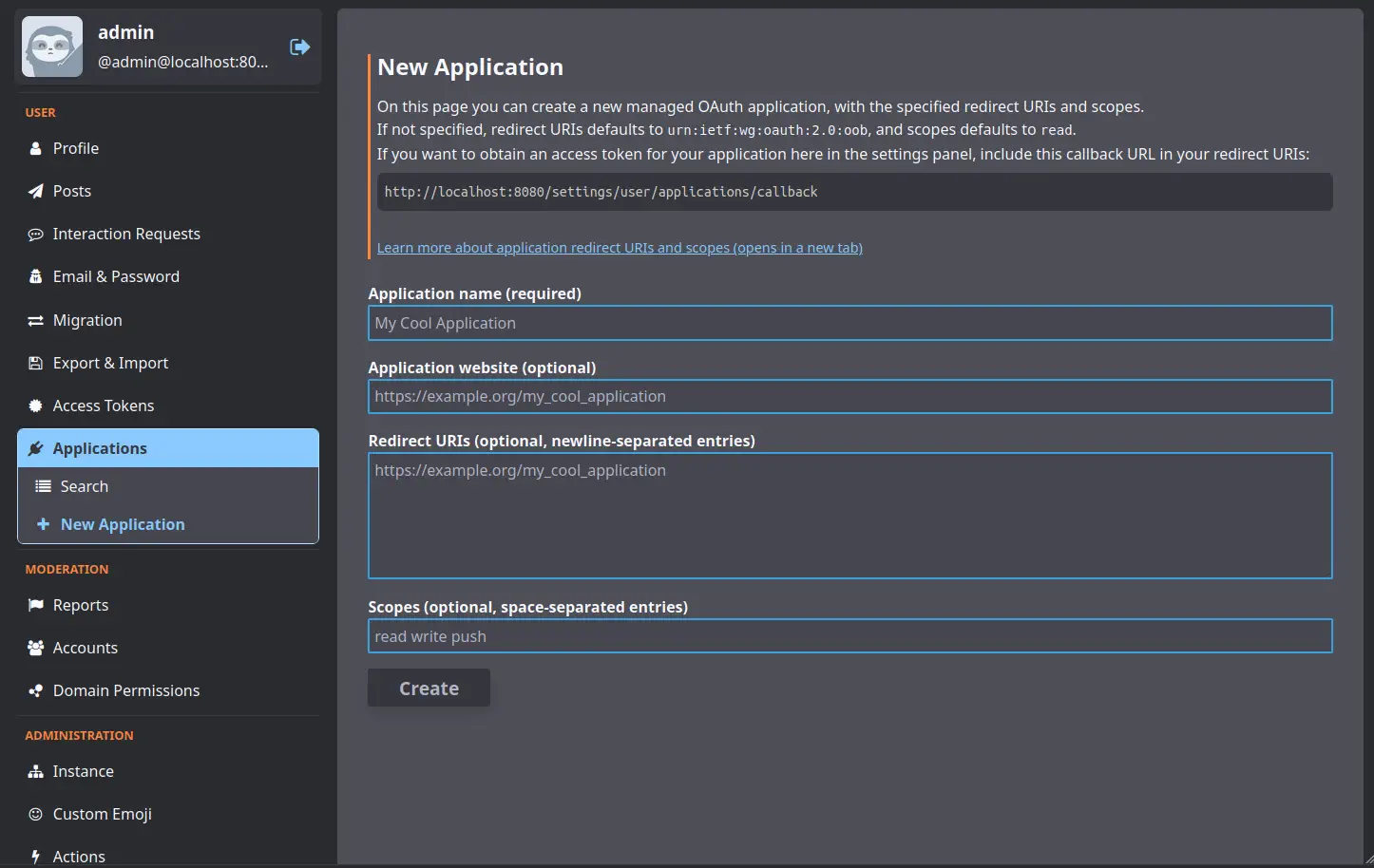
To create a new managed OAuth application, you must provide at least a name for your application. If you want, you can provide a website too.
If you don't provide any scopes, then the application will have scope read by default.
If you don't specify any redirect URIs, then the application will have the out-of-band redirect URI urn:ietf:wg:oauth:2.0:oob by default.
If you want to be able to use the settings panel to easily get an access token for the application that you create, then you must include the given settings panel callback URL in your redirect URIs list. This will be in the form https://gotosocial.social/settings/user/applications/callback.
Application Details
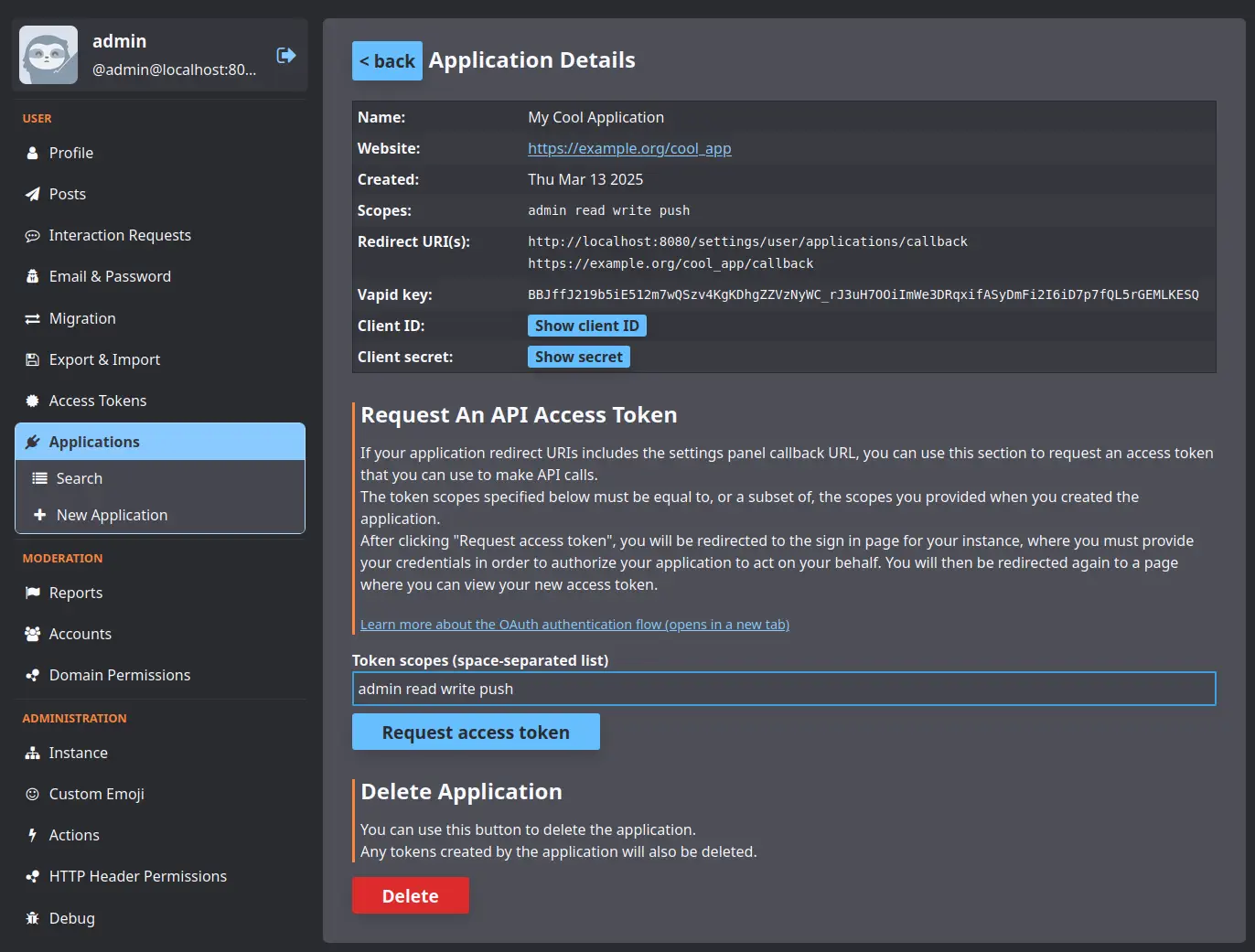
On the details page for an application, you can view the application's client ID and client secret, which you can use in a command-line tool like curl to manually get an authorization code + access token for the application.
If you included the settings panel callback URL in your redirect URIs list, you can also use this page to request an access token for your account. This will redirect you to the sign in page for your instance, where you must provide your credentials in order to authorize your application. You will then be redirected again to the settings panel callback URL, where you can receive your access token.
You can also use this page to delete your application. When a managed application is deleted, all tokens that were created via that application will also be deleted, so ensure you only do this when your application is not being used.