Filters, Mutes, and Blocks
By following users or hashtags, you curate the content you want to see in the Fediverse. Through filtering, muting, and blocking, you curate the content you do not want to see.
Feature Comparison
| Attribute | Filter | Mute | Block |
|---|---|---|---|
| Target | Specific content (keywords) | Specific users or posts | Specific users |
| Effect | Hides or collapses (can be expanded to view) | Hides; not actively displayed | Completely stops interaction |
| Duration | Specific duration or permanent | Specific duration or permanent | Permanent |
| Visible to Target | No | No | Yes |
Note on "Permanent"
"Permanent" in this context is reversible, meaning the setting remains active "until I manually revoke it."
Filters
You can manage your filters using any client that supports the filtering feature. Taking pl-fe as an example, the filter management interface is located within the "Settings" menu.
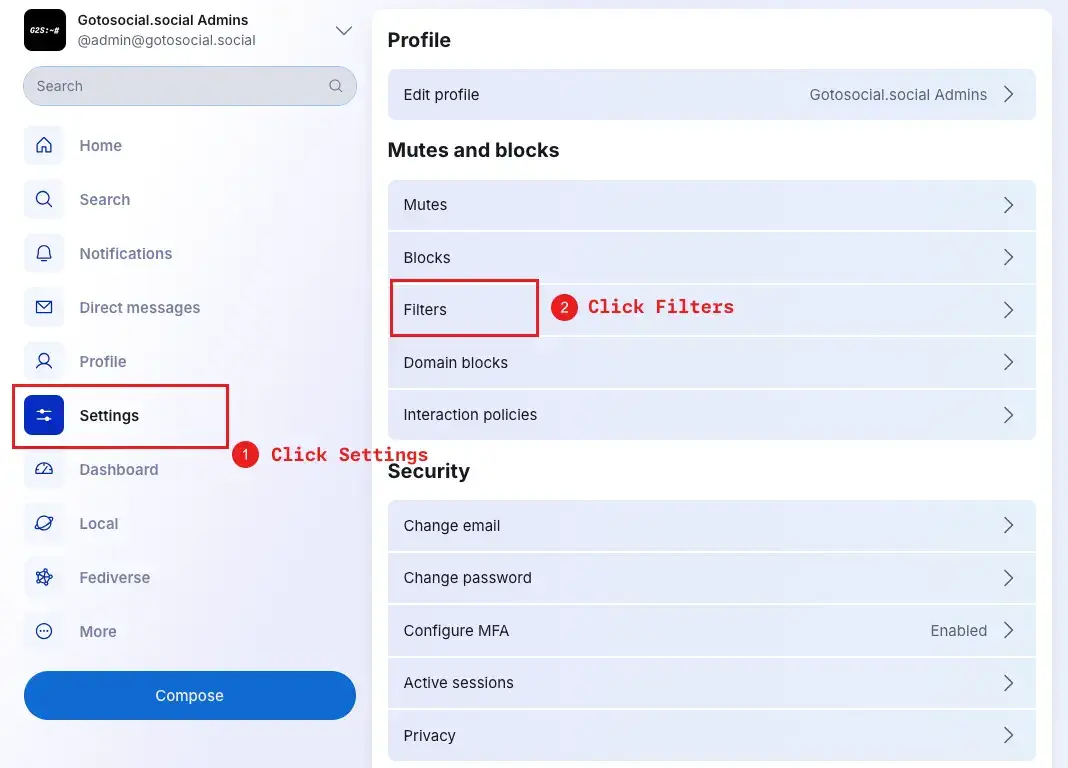
A filter rule consists of a title, keywords, expiration time, and context:
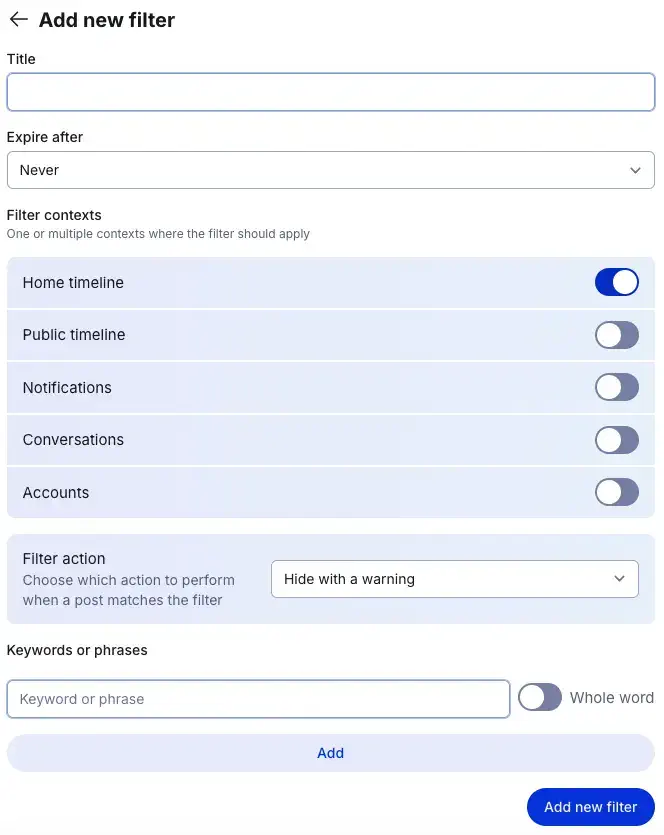
- Title: The name of the rule for your own reference and management. It does not need to be related to the filtered content, as long as it is recognizable to you.
- Keywords: The content to be matched. You can add multiple keywords. When multiple keywords are added, they function with an OR relationship; if any one of the keywords is matched, the content will be filtered. Keywords can theoretically be any characters—emojis, Chinese, English, numbers, etc. Keywords are case-insensitive.
- Expiration: The duration for which the rule is active. It can be set for a specific time period or set to never expire.
- Contexts: The scope where the rule applies. Generally supported contexts include
Home Timeline,Public Timelines(Local & Federated),Notifications,Conversations(Direct Messages), andAccounts. You may select one or multiple contexts. - Whole Word Match: Determines whether to match only complete words. If enabled, the filter will only trigger on exact word matches. Please refer to the appendix at the end of this section for examples.
- Action: You can choose to
HideorCollapse(Warn).Hidecompletely removes the matching content from view.Collapsehides the content behind a warning, requiring a click to view it.
Whole Word Match Examples
When Whole Word Match is enabled, the system looks for the keyword as a standalone word, separated by spaces or punctuation.
Example 1: Keyword is "cat"
- "I have a cat." -> Filtered (Matches)
- "That is a cat, right?" -> Filtered (Matches due to punctuation boundary)
- "Check out the category list." -> Not Filtered (Part of another word)
- "We need to locate him." -> Not Filtered (Part of another word)
Example 2: Keyword is "mad"
- "He is mad." -> Filtered (Matches)
- "She is a nomad." -> Not Filtered (Part of another word)
- "I made a cake." -> Not Filtered (Part of another word)
Tips
- Once a filter rule is active, it applies to all content, including past posts. When a rule expires or is deleted, previously filtered content will reappear. If you notice that posts remain unchanged after a rule is applied or expired, it is likely because your client has cached the state of those posts. Try refreshing the page or clearing the cache.
- If you wish to filter content containing a specific hashtag, there is no need to include the
#symbol in the keyword; simply input the tag name itself.
Mute
If you mute an account, you will no longer see any content posted by them, even if they mention you.
From their perspective, your account appears unchanged; they can still see your content and interact with you.
Muting a post (often called "Mute Conversation" or "Disable Notifications") allows you to stop receiving notifications for a specific thread. This is useful if one of your posts receives an overwhelming amount of attention and you wish to stop being disturbed.
Block
Blocking a user is the most decisive action. You will no longer see any content from that user, nor will you receive any notifications from them.
Upon blocking, both parties disappear from each other's view and following lists (if applicable). The blocked user can no longer view your content or interact with you while logged into their account.
However, please note that if a blocked user accesses your profile as a guest (e.g., opening your profile link in a browser while logged out), they will still be able to see your public content.